A tutorial on how to install skins on Football Manager 26 using the FM Match Builder. Learn how to install FM26 skins the easiest way!
Whether you just want to customizing the look of Football Manager 26 to make your managerial experience feel truly personalized, change the looks of FM26 because of it’s dreaded poor interface, or wish to get a new perspective on your FM26 save, changing the looks and appearance of Football Manager has always been a great way to enhance immersion for Football Manager. Downloading skins has always been a must, along side importing logos and facepacks!
With the overall experience of Football Manager 26 reportedly being mostly negative, especially regarding the user interface and its layout, I believe getting back the good-old FM feeling has topped all ours wishlist.
Although skinning was initially reported to be impossible for FM26, the magnificent FM Community has stepped up. While the developers at SI has been busy fixing bugs, certain people like BassyBoy and his fully realistic 3D stadium mod, Lotsgon and others have worked hard to create mods and apps for FM26 that truly redefines the experience of FM!
Thanks to the wonderful expertize of Lotsgon, we can now report that downloading and importing skins to Football Manager 26 is finally an opportunity via the FM Skin Builder tool!
Today we’ll take a closer look at the major steps made to FM26 skin editing and how you can install custom skins on Football Manager 26! We’ll explore the FM Skin Builder app by Lotsgon, and look at some of the FM26 skins available right now!
About the FM Skin Builder App
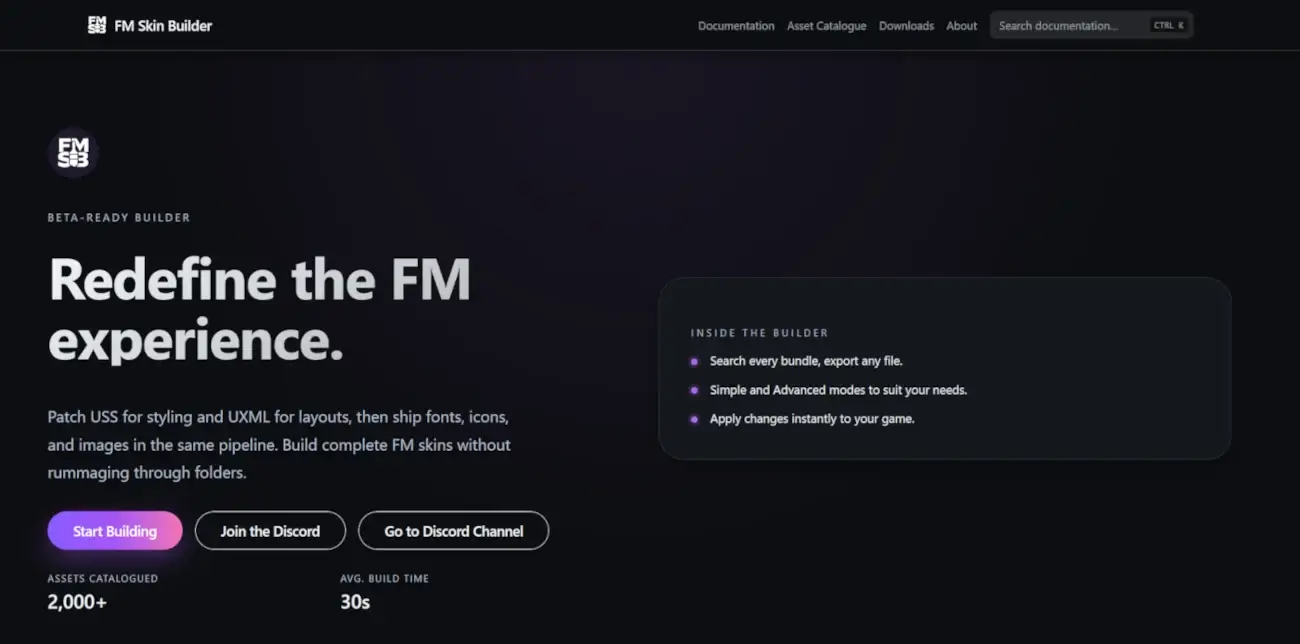
While Football Manager 26 might have been poorly received by the fanbase, the FM Community has really proved the game’s huge potential! Not only for tomorrow but really showcased the brilliance of moving to the Unity Graphics Engine.
One of the biggest steps made in the FM Community since FM26 release was unlocking the secrets behind editing the layout and template of FM26.
Made available by Lotsgon and his FM Skin Builder app, you can now not only download and import FM26 skins but also build a unique and personlized skin for Football Manager 26 yourself!
The FM Skin Builder is a toolkit for anyone within the FM Community who wish to create and craft their own skins! Brought to you by Lotsgon, this community-driven toolkit gives all FM Creators the opportunity to get full control over the styling, layout, use of fonts and icons on Football Manager.
Through it’s intuitive interface, you can set up a workflow that helps you to design, patch or release skins for Football Manager.
They describes the FM Skin Builder as a toolkit to:
- Edit colors using familiar CSS syntax with visual color pickers
- Replace assets – icons, backgrounds, and fonts
- Customize layouts using UXML editors
- Preview and build with one-click
- Install Skins to FM automatically
However, for anyone not that tech-savvy, the FM Skin Builder also let you import custom-made skins on FM26 quickly and efficiently – without the hassle of replacing default game files, or spend time searching for the correct folders and files to change the design of Football Manager.
With the vision to help everyone from first-time skinning editors to veteran modders, FM Skin builder website provides you everything you need to change the appearance of Football Manager – whether you want to go the long way to create something of your own, or use their app to easily import pre-made skins from reputable sources within the FM Community.
With it’s huge library of Documentation and Troubleshooting tips, you’ll get all the help you need to understand the Football Manager 26 skin, how it is built and how you can make changes to the layout and all the game’s panels. More help and support using this tool is available within the FM Matchlab Discord: https://discord.com/invite/Dr9gaChvRG
Although we won’t go into details on how you can edit your own skin for Football Manager or explore the FM Skin Builder tool in-depth, it’s time to take a deeper look into why you’re here: how to install custom skins for Football Manager 26.
How to Install FM26 Skins?
To install skins on FM26, there are two methods. Before you proceed, you must quit FM26 and make sure you have downloaded your preferred custom skin for Football Manager.
Method 1: Via the FM Skin Builder Tool
The first opportunity is to visit the FM Skin Builder website. There you will be able to download an app for Windows, Linux or macOS that will ease the process of importing skins to Football Manager 26.
You can find the direct link to download the FM Skin Builder tool below.
Be aware! The FM Skin Builder will restore to the original game files whenever an update or patch arrives! You would need to make sure you have update the app to the latest and most fresh version of the app before modifying FM26.
You should also make sure you are working with the latest default game files, if you wish to make any customizing of Football Manager. Remember to verify integrity of game files at Steam before proceeding.
Go to Steam: Football Manager 26 (right click) > Properties > Installed Files > Verify Game Files
With the FM Skin Builder app in your repocital you can further customize the theme colours of FM26, or go with the layout and design your preferred skin comes with.
Once the tool is downloaded, run the installation process. The app should create a skins folder in your Documents (Documents\FM Skin Builder\skins).
Unless you are not going to create your own FM26 skin, you would need to download one of the skins available for Football Manager 26.
For this tutorial on how to import skins using the FM Skin Builder, we will explore how to install the MrTini23 FM26 skin (which will be available on Passion4FM later).
This FM26 skin by MrTini23 is one of the first skins on the market, and is available to download for free at his Patreon. Use the link below to download his FM26 skin.
Once the files of MrTini23’s FM26 skin is downloaded, unzip the folder and move the folder MrTini FM26 Skin v1.2 inside ‘FM Skin Builder version’.
Open the FM Skin Builder app and find the settings (cog) on the bottom left side. Make sure the app is able to know where the FM bundles files are located.
- Locate Game Bundles Directory
- Select the path to the local installation of Football Manager 26:
- Windows (Steam): C:\Program Files (x86)\Steam\steamapps\common\Football Manager 26\fm_Data\StreamingAssets\aa\StandaloneWindows64
- macOs (Steam): ~/Library/Application Support/Steam/steamapps/common/Football Manager 26/fm.app/Contents/Resources/Data/StreamingAssets/aa/StandaloneOSX
- Proceed by clicking on the Explorer (on the top left hand of sidebar menu)

- Select Open Skin
- Choose your preferred skin e.g. MrTini23 skin.
- Choose Build on the left hand sidebar menu
- Click Build on the right side of the interface
- Wait until the files are finished initialized. The process will take a few minutes. Be patient!
- Once all bundles are initialized, click Apply to Game
- Open Football Manager 26 and enjoy the game with a fresh new look and feel!
Method 2: Re-Place Original Game Files
The next step is a bit more technical, if that’s the right word. To install FM26 skins with this method, you would need to replace the original bundles within the ones within your preferred downloaded skin.
It’s recommended to take a backup of the original Football Manager 26 bundles before proceeding.
To proceed with this method, you must also know the location of the default FM files.
You can find the correct path to Football Manager 26 by clicking on the game’s Steam Library.
- Click on the cog and find Process > Browse through local files

This will open up a folder that enables you to better browse the local installation of Football Manager 26.
- Select fm_Data > StreamingAssets > aa > StandaloneWindows64
- For MrTini23’s FM26 skin choose the ‘Copy + Paste‘ folder.
– There are two versions of the skin available – one default and one dark mode to choose from. - Replace the original files with the modified skin bundles.
- the files are:
– stadium-ads_assets_all.bundle
– ui-backgrounds_assets_.bundle
– ui-backgrounds_assets_common.bundle
– ui-fonts_assets_production.bundle
– ui-prematch-backgrounds_assets_common.bundle
– ui-styles_assets_common
– ui-styles_assets_default
– ui-styles_assets_match.bundle
– ui-tableviews_assets_all.bundle
– ui-tiles_assets_all.bundle
– ui-tileslayouts_assets_all.bundle
NB! Make a backup of all the original files you will replace according to the budles within your downloaded skin. Store those original bundles on a safe place in case something goes wrong and you can easily restore FM26 to the original state.
- Once the bundles are replaced, Open Football Manager 26 and enjoy the fresh new look on the game!
Keep in mind that if there are new updates to the skin, you would need to re-apply the bundles again. Simply follow the steps above and re-apply the skin bundles.
How to Restore the Game to The Default FM26 Skin?
If you are using the FM Skin Builder tool, you can always restore the skin to the original appearance of FM26. This is recommended if you experience something breaking e.g bugs or you are running into any errors with the skin installed.
Inside the FM Skin Builder app, go to Build, find Game Status and simply click Restore Default.

If you have copied the modified files from a custom-made skin, you should either copy and paste the original back up bundles of FM26, or go to Steam and verify the integrity of the game files. This will fetch the last up-to-date original bundles for Football Manager 26.
With the FM Skin Builder tool in your repocital it makes it easier to install new skins to Football Manager 26, or restore the game to the default appearance if something breaks. You can easily change between skins, or re-add your desired skin after an FM26 update.
There you have a quick tutorial on how to install custom skins for Football Manager 26. With several of FM Creators busy at editing skins, there is a huge chance your favorite FM24 skin will return for Football Manager 26 or FM27!
Stay tuned for a whole lot of new skins coming to Football Manager 26 in the future! Let us know in the comments which are your preferred FM26 skin and why!