


Football Manager 26 takes the immersive experience of managing your own football club to new heights. Apart from a richer match experience and a brand-new UI, the ability to customize your game with more realistic graphics, such as facepacks, logos and kits are essential for any avid fan looking to bring even more detail to their game world.
For Football Manager 2026, the question everyone is asking is how to install mods and graphics on FM26. In this comprehensive guide, we’ll walk you through the simple steps on how to install facepacks, logos, and kits in Football Manager 2026.
For the most experienced manager, taking the time to make Football Manager look better by updating all kinds of visuals ensures for a more immersive experience.
Whether you like to mod Football Manager 2026 to make the game appear in a certain way or simply want to upgrade the graphics for the club you are managing with real life player faces, authentic logos and kits, knowing how to make the game look astonishing is crucial to enhance your game world experience.
Installing graphics such as player photos, real crests and authentic kits can make a huge difference – adding a visual layer of authenticity to your game.
Whether you’re looking to update player images, team emblems, or create an entirely new look for your favourite clubs, you’ll be able to follow our easy instructions to ensure everything is set up correctly, and get off to a fresh new start.
Normally, customizing the looks and feel of Football Manager has been available by downloading custom skins and modifying its visual appearance However, for Football Manager 2026 there will not be possible to apply skins to FM26.
Instead, we will entirely focus our attention on how to install facepacks, logos and kits for FM26.
Let’s face it, every one of us has their different approaches to mod Football Manager and make the game appear as they fancy it.
Whether you want to install only facepacks, apply club logos and crests, or incorporate kits and stadium backgrounds, everyone will turn to their favourite graphics creator for their mods.
So are we!
Today we will be referring to some of the best graphics to download for FM26 with the intent to show you how to download and install graphics on Football Manager 2026 by referring to our favourite graphics.
Although we have our favourite graphics, we wish to install on Football Manager 2026, how to install face packs, logos or kits and where to put them is the same regardless of what type of downloads they favour. but regardless of what you
So, without further ado, let’s examine how to download all the different kinds of graphics for Football Manager 2026 so you can do the same upgrade to Football Manager 26 as us!
What You’ll Need
Regardless of what type of graphics you prefer, there are some requirements you need to complete this tutorial on how to apply and install graphics for Football Manager 2026.
What you’ll need to install all kinds of graphics is similar regardless of whether you look to download facepacks, logos or kits for FM26.
Before we dive in, here’s what you’ll need:
- A file extraction tool like WinRAR, 7-Zip, or The Unarchiver (for Mac)
- Access to the graphics folder for FM26 – It’s found inside your Football Manager user data location
- A few minutes of patience!
How to install facepacks on FM26? | Get real player faces on Football Manager 2026
If you want to fully enjoy playing Football Manager 2026 and at the same time, take realism to the next level, installing facepacks is one of the best ways to do it. By default, FM26 uses generic faces for most players and staff, especially for those not officially licensed. But with a face pack, you can add real photos for thousands of players and staff around the world, making your game more immersive and visually satisfying.
Step 1: Download Your Desired Facepack
There are many different types of facepacks for Football Manager 2026 available in the market some of them are quite large – requiring you to use a download manager or torrent for faster and more stable download process.
You can use either uTorrent or BitTorrent to begin downloading this FM26 facepack.
Once you have found a reliable facepack for Football Manager 2026, such as the Sortitoutsi Cut-Out Face pack or the DF11 Faces Megapack for Football Manager 2026, which we prefer, you can complete the first step.
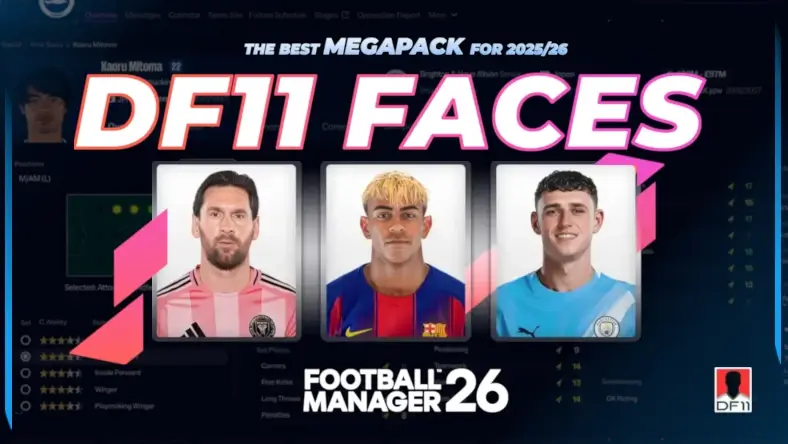
Enhance the realism of your Football Manager saves with the ultimate Football Manager 26 Facepack – the DF11 Faces Megapack for 2025/2026 season by DF11Faces.
The Football Manager 26 DF11 Facepack is one of the most updated and biggest face packs for FM26 featuring nearly 250,000 staff and player faces updated for 2025/26 season.
The DF11 Faces Megapack and updates, comes in a unique and fresh style, and is available in three different versions: Free, Lite (paid) and Mini-version designed for FM26 Mobile. For this tutorial we have downloaded the free version of DF11 Faces Megapack.
With a pack size of around 14GB, it requires a Torrent client, and the download process is dependent on the number of seeds. Here’s the direct link to the Original DF11 2025 Megapack.
Alternative: Action Style Facepack by LuckyLukeFM
Another great alternative to the DF11 Facepack is the Action Style Facepack by LuckyLukeFM. This pack of real player faces for FM26 is available by subscribing to his Patreon but offers nearly 14,000 players and staff in an inventive style.
Check out the Football Manager 26 Action Style Facepack for 2025/26 season now!
Step 2: Locate or Create Your Graphics Folder
Once your preferred face pack for FM26 is downloaded, locate the user location of Football Manager on your PC or MAC.
By default, your FM26 user data folder is located at:
- Windows:
Documents\Sports Interactive\Football Manager 26\graphics - Mac:
~/Library/Application Support/Sports Interactive/Football Manager 26/graphics
NB! If Library is hidden, you may need to reveal it via Finder → Go → hold Option to see Library.
NB! If there is no graphics folder, create one manually.
To be more organized it is recommended to create a subfolder called faces within the FM26 graphics folder.
Step 3: Extract the Facepack
Now it’s time to extract the facepack into the graphics/faces folder. To complete this step, you need to use a file compressor tool such as WinRar or the built-in compression tool in Windows 11.
1. Right-click the downloaded archive (e.g., .zip, .rar, or .7z).
2. Choose “Extract Here” or extract to a folder like FM26 Facepack – unless you select to extract the folder directly into the recommended location (Step 2)
3. Move the extracted folder from Downloads into your graphics/faces directory
It should look something like this:
Documents\Sports Interactive\Football Manager 2026\graphics\faces\DF11 Facepack
Step 4: Quit FM26 & Restart Steam
In Football Manager 26 there is no way to reload the skin and use caching to decrease page loading time. To make it work, simply quit FM26 and restart Steam.
Step 5: Check if it’s working
Make sure to check if you’ve managed to install the face pack correctly. Go to any player profile that has a generic face.
IMPORTANT!
If you are using an previous downloaded facepack you must note that:
At present, FM26 cannot handle multiple files with the same name. For example, if you have two files with the name “101010.png”, it will not load both. Every file must have a unique name.
Therefore, you must only load one face pack and delete any other files with identical ID’s.
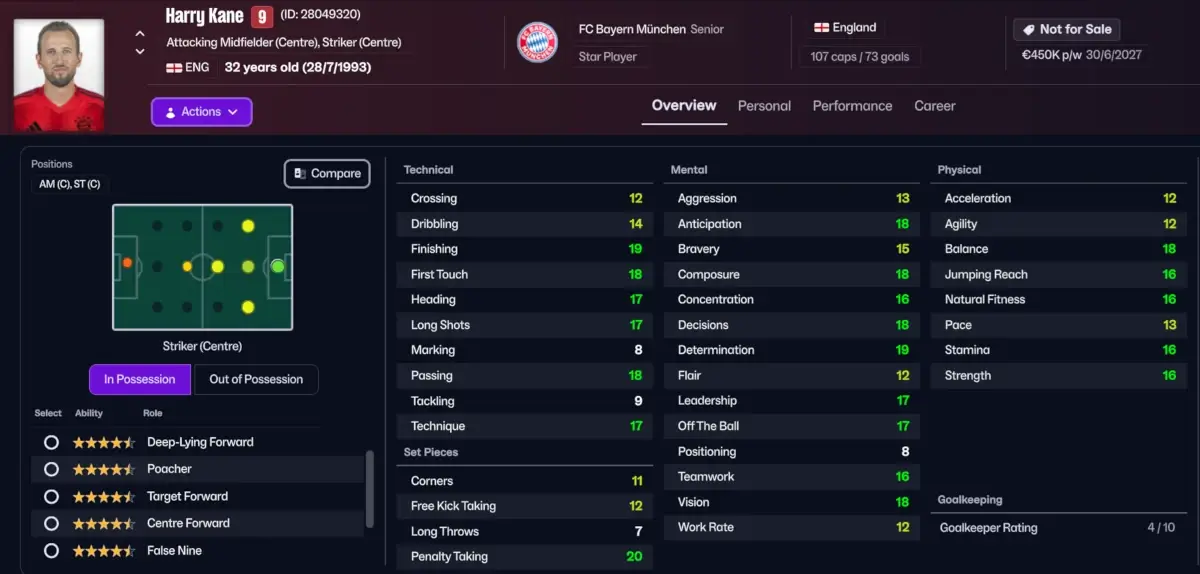
If installed correctly, you’ll now see a real player photo instead of the default silhouette.
In fact, the process of installing logos and kits on Football Manager 2026 is quite similar to the above step-by-step process. However, we will walk you through the download process so there are no confusion.
Installing facepacks in Football Manager 2026 is one of the easiest and most satisfying ways to upgrade your gameplay. It doesn’t just look better – it feels more real.
With real player faces staring back at you from the squad screen, every transfer, goal, and tactical decision hits just a bit harder.
Personally, adding real faces in Football Manager has made it easier to establish connections to your new wonderkid, your current star player or recognize players in real-life situations. Build connections to your squad and potential future signings by installing player faces on FM26.
How to install real logos on FM26?
The next step in the process is to look at how you can install logos on FM26. To be honest, the steps are basically the same as for facepacks but rather than downloading your preferred face pack, you’ll download your preferred logo pack.
Step 1: Download Your desired logo pack for FM26
There are several different styles of logo packs available for Football Manager 2026. What logo pack to install on FM26 is basically
However, for this tutorial, we will walk you through the process of installing the massive TCM26 Logos Megapack. Created by TCMLogos, it offers you the opportunity to update Football Manager with around ~75000 logos for both clubs, competitions and federations.
The TCM Logos has been my preferred logo pack for Football Manager for nearly 10 years and provides high-quality logos without much other fluff that just eats up hardware space.
The TCM26 Logos Megapack for Football Manager 2026 will be available on Passion4FM but to download you’ll be redirected to their website and can download their logos for free without needing an account. Simply use the direct link here and click on the image Download Megapack image. You will then be redirected to Mega.nz.
The TCM Logo pack will have a file size of around 4GB. The download process will take around 5 minutes depending on your internet speed.
Alternative: FMG Standard Logos by FMGraphics
Another alternative is the magnificent work made by FMGraphics. Here you’ll have the opportunity to select from several different logo styles such as their FMG Vapor Logos, FMG Steel Logos or the more renown FMG Standard Logos for FM26.
You can explore the FMG Standard Logos for Football Manager directly on our website. To download these logos, you would be redirected to their site and require an account to finalize the download process.
Step 2: Locate or Create Your Logos Folder
Once your preferred logo pack for FM26 is downloaded follow these steps:
1. Locate the user location of Football Manager on your PC or MAC.
By default, your FM26 user data folder is located at:
- Windows:
- Documents\Sports Interactive\Football Manager 26\graphics\logos - Mac:
Users/Name/Library/Application Support/Sports Interactive/Football Manager 26/graphics/logos
NB! If there is no graphics folder, create one manually.
2. Create a Logos folder inside the graphics folder to be better organized. See example above.
Step 3: Extract / Unpack the files
Once you have downloaded your desired Football Manager 2026 logos, it’s time to get the logos working in Football Manager.
- Use an archiver tool, such as WinRAR or 7-Zip to extract the folder ‘Megapack TCM26’
- Move the folder containing the logos fom Downloads into the newly created graphics/logos folder.
- Exctract the megapack. Once extracted the folder structure is Megapack TCM26 > Logos TCM26. Click on the Logos TCM26 subfolder so you’ll see all the different regions, e.g Europe. This is where the logos for clubs in Ligue 1 or La Liga are stored.
- Cut out and paste all the regions folders within the ‘Logos TCM26’ into the graphics folder so you got all the different regions e.g. Europe appearing just beneath /graphics/logos
Step 4: What to do until the Official TCM26 Logo pack arrives
Team and competition logos should work in Football Manager 26 but until a fix arrives from the logo pack creators you must adjust your preferred logo pack, unless the creator has not already done it, or you wish to use a older logopack for FM26, or you can’t wait for an update.
The following sections are no longer required and may cause conflict and will need to be deleted:
- Small
- icon
- left/back/right
- @2x
Step 5: Quit FM26 & Restart Steam
Now that your Football Manager logos is in the right place, you need to quit FM26 and restart Steam to make sure caching is deleted.
How to install real 2D kits on FM26?
Do you want to upgrade Football Manager 26 with authentic kit packs for 2025/26 season, then there are lots of different alternatives to consider.
Installing kits in Football Manager 2026 enables you to customize the looks of your Club Overview with real-life looking kits from clubs around you as well as the team you’re managing.
Often add-ons like kits for Football Manager comes in Nations or League specific packs – meaning you’ll have to conduct the download process several times. However, the installation process is the same regardless of which kit packs you prefer.
Following is a step‑by‑step tutorial on how to install kit packs for Football Manager 2026.
Step 1: Download the desired kit pack for FM26
In regards to kits for Football Manager 2026 we can highly recommend the brilliant work FMSlovakia has done throughout the years by crafting top-tier kits and other add-ons to Football Manager, such as realistic match balls. But today, we’ll focus our attention to their FC’12 kits for Football Manager.
The Football Manager FC’12 kits by FMSlovakia is created per nation and division – meaning you can prioritize which leagues you want kits from, and thereby save storage space.
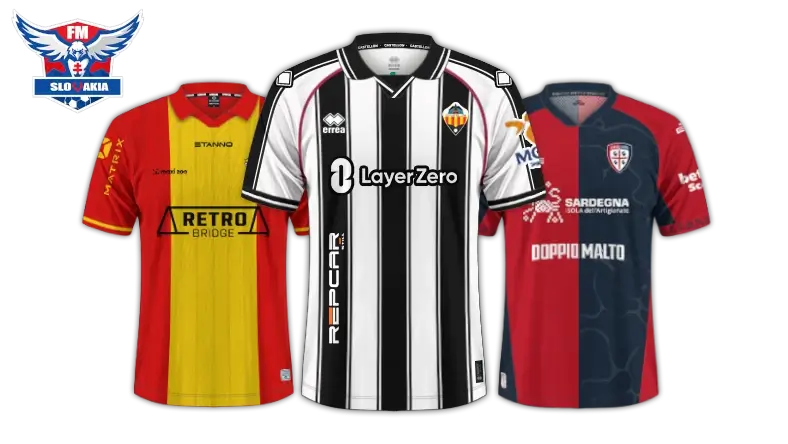
At their website you can choose kits from several unlicensed divisions too, such as Nepal or Macedonia. It also offers more renown leagues – from Liga Portugal 2 Meu Super to the Spanish Primera Federacion.
So far there are kits for 33 playable and unplayable nations but there are frequent updates arriving every week. You can find a comprehensive list of available kits for 2025/26 season directly here.
To download a kit pack, you need to first verify you’re not a Robot. Then, click view for the desired kit pack. You will then be redirected to the page about the kit pack, e.g. the FC’12 Spain – Liga Hypermotion 2025-26 which we will download as an example.
Choose between Dropbox or Mediafire. Wait until the download process is finished.
Step 2: Extract / Unpack the files
- Use your archive tool (7‑Zip, WinRAR, etc.) to extract the contents of the kit pack.
- When you extract the pack, the original files is placed within a subfolder. You might need to click until you reach the folder which contains the images of kits.
Step 3: Place the files in the FM26 “graphics/kits” folder
To get the kits appearing in Football Manager, you need to put the kits in the correct directory so FM26 can locate them.
Paste the files into:
- Windows
Documents\Sports Interactive\Football Manager 2026\graphics\kits\
If the graphics or kits folders do not exist, create them. - macOS
~/Library/Application Support/Sports Interactive/Football Manager 2026/graphics/kits/
If Library is hidden, you may need to reveal it via Finder → Go → hold Option to see Library.
So the path should look like:
…/Football Manager 2026/graphics/kits/[league-folder]/kit_files.png
Step 4: Activate the kits in game
- Open FM26. Go to Preferences.
- Navigate to Interface settings (sometimes under “Appearance” or “Advanced Interface”).
- Change these settings:
- Untick “Use caching to decrease page loading times”
- Tick “Reload skin when confirming changes in Preferences”
- Confirm your changes. The game should then reload the UI/skin and incorporate the new graphics.
- If prompted, click Reload Skin to apply the new kits.
So there you have it. We have now gone through the process of installing facepacks, logos and kits for Football Manager 2026. Although the process of finding and downloading all the graphics you want for FM26 might take some time, it will be highly rewarding once you enter your new save on Football Manager 2026.
Be aware, backgrounds are not supported in FM26 while trophies is not used in the game anymore.


